
Customer summary panel
Note: The Wise Console is still in development, and some features may not yet be available.
The customer summary is on the left side of the Customer Management screen. The summary contains basic information about the customer, information about relationships, active cards, circulation information, and badges.
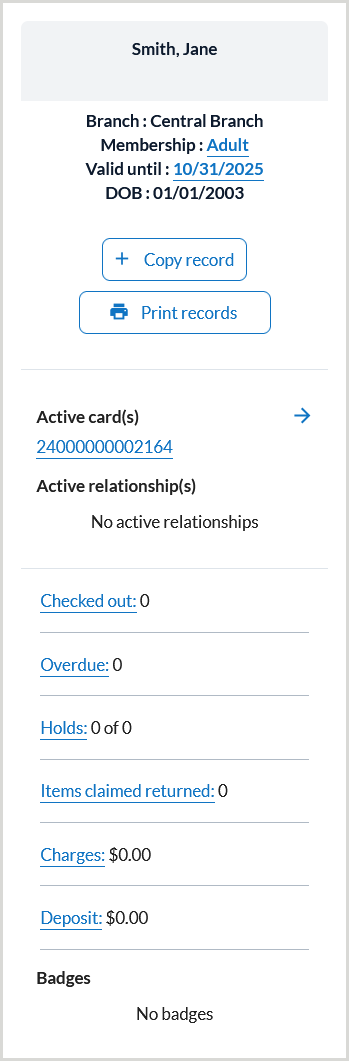
The following information appears in the customer summary:
| Field | Description |
|---|---|
| Image |
Note: Customer image is only available when the system option CUSTIMG is enabled. If an image was added for the customer within the Customer administration screen in the Wise Client, it can also be viewed in the Customer summary within the Wise Console. If no image was added for the customer, their initials will appear within the image placeholder. |
| Branch | The customer's home branch. |
| Membership | The customer's membership type.
Note: When a customer is blocked, an additional Membership line indicating the block will appear in red. Clicking the block notice will open the Preferences screen where blocks can be removed or added. |
| Valid until | The date the customer's membership expires. |
| Copy record | Used to create a new customer record using specific details from an existing customer. For more information, see Copy customer record. |
| DOB | The customer's birth date. |
| Print records |
This feature allows staff to generate an overview of all or select customer information, including:
Note: Each selected report will open in its own tab. |
| Active card(s) |
The Active card(s) section displays the barcode number(s) of the card(s) associated with the customer. Both primary and conditional cards will appear in this section. Clicking the card number opens the Cards section of the Customer data tab where cards can be added, removed, or edited. |
| Active relationship(s) |
If the customer account has one or more relationships associated with it, it will appear in the Active relationship(s) area. See Establish a customer relationship for more information. |
| Checked out |
The number of items checked out to the customer's account. Clicking the Items Out link opens the On loan section of the Activity tab. |
| Overdue | The number of items checked out to the customer's account that are currently overdue. If an item is currently overdue, a yellow exclamation symbol will appear in this field. Clicking the Overdue link opens the On loan section of the Activity tab. |
| Holds |
The number of active hold requests associated with the customer account. Clicking the Holds link opens the Holds section of the Activity tab. |
| Items claimed returned | The number of claimed returned items associated with the customer account. Clicking the Items Claimed Returned link opens the On loan section of the Activity tab. |
| Charges | The accumulated fines and fees (in dollars) associated with the customer account. Clicking the Charges link opens the Financial section of the Activity tab. |
| Deposit | The amount of money (in dollars) deposited on the customer account. |
| Badges |
If the customer has Badges assigned to their account, they will appear in this area. Note: To use Badges, the CUSTBDG system option must be activated, and badges must be configured in Customer badge definitions within the Wise configuration manager. Contact OCLC Support for assistance. |